Best Anki AI Card Maker for Medical Students: Turn Lecture PDFs into Decks with Ankify
Posted on: 2025-12-25
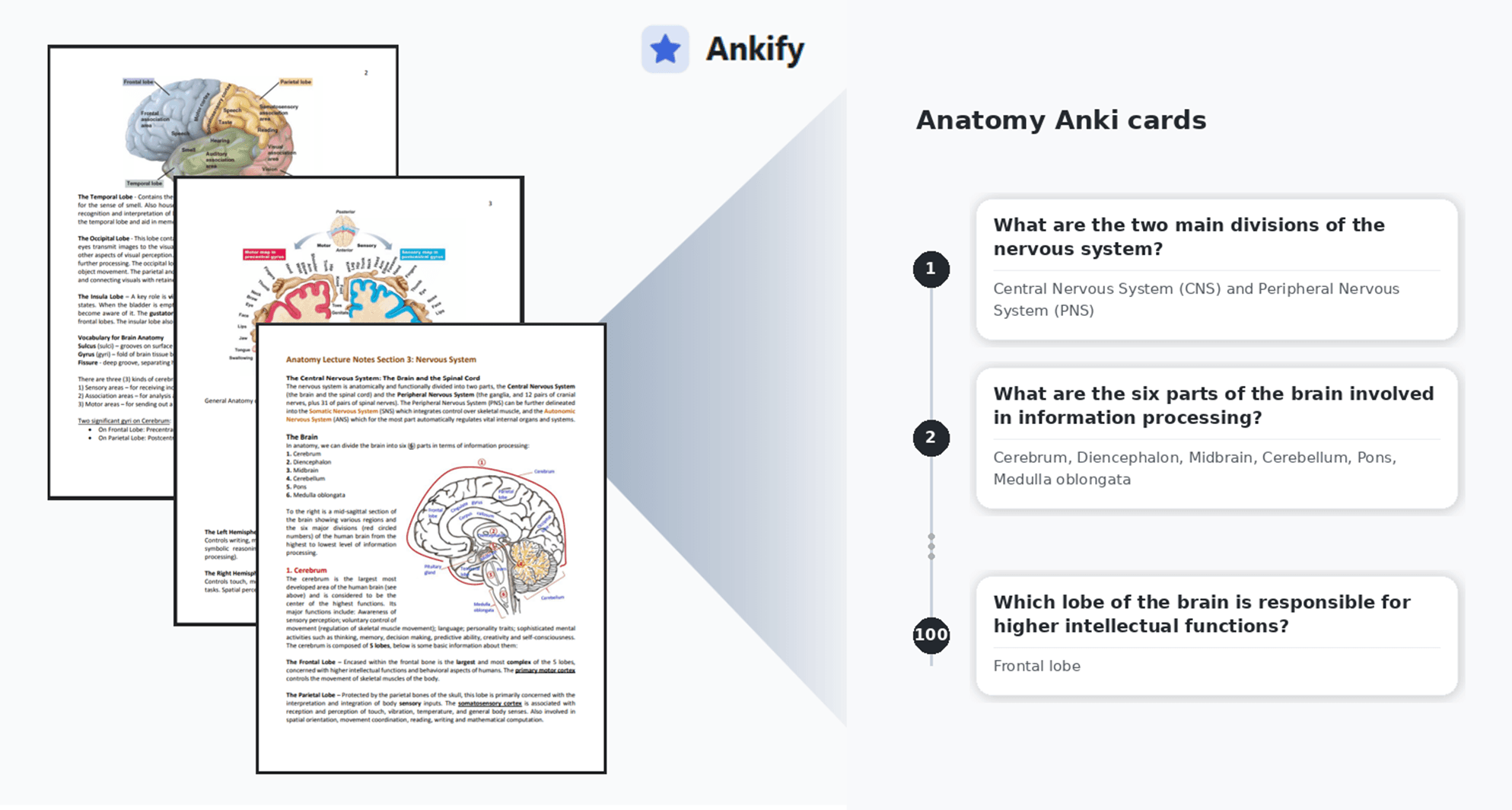
Figure 1. From lecture notes to Anki deck: Ankify converts a nervous system lecture file into an Anki-ready deck you can export as
.apkg.
If you already use Anki, you know flashcards work. The real bottleneck is the setup: turning lecture notes into a clean, high quality deck takes time. Time you’d rather spend studying.
Ankify is an AI Anki card maker built for students who want a fast, repeatable workflow:
Upload → Generate → Preview → Export to Anki.
In this walkthrough, we’ll use a typical med-school handout: an 18-page “Nervous System” lecture notes PDF. The file is dense, structured, and packed with figures and illustrations.
Why Ankify is useful for medical lecture notes
Medical lecture notes are not designed for spaced repetition. They’re designed to contain everything — long explanations mixed with key facts, definitions and lists, tables and figure captions, repeated concepts across sections, and plenty of examples.
That’s why turning a PDF into Anki cards is such a common pain point. Ankify helps you get from notes to a usable deck quickly, so you can move on to what actually matters: studying.
Step-by-step: Turn a nervous system lecture into an Anki deck with Ankify
1) Add your lecture content
Start by opening Ankify and adding your material. You can upload a file such as a PDF, Word document, PowerPoint, or spreadsheet. If you prefer, you can also paste text directly from your notes or describe a topic using a prompt.
For this example, we upload the Nervous System lecture notes PDF.
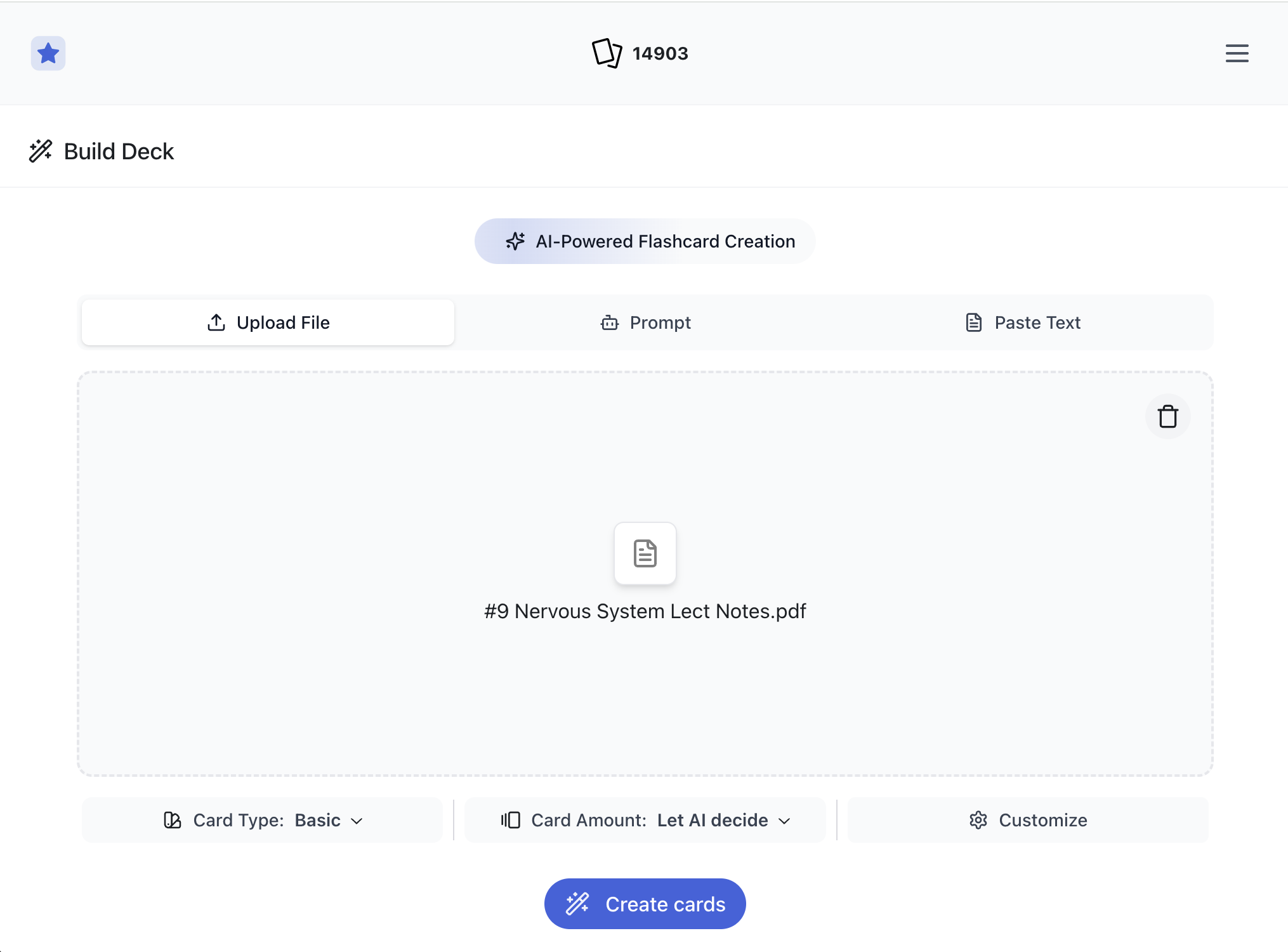
Figure 2. Upload screen: Upload a lecture file and choose your output settings.
2) Choose how you want your cards to look
Before generating, set the deck output to match how you study. Ankify supports basic cards, cloze deletions, and multiple-choice questions.
You can also decide roughly how many cards you want, select your preferred output language, and customize how the questions are written — for example, making them more concise or more clinically focused. These settings help the deck feel closer to something you would have made yourself.
This is the fastest way to shape the deck without spending time on manual formatting.
3) Generate and preview the deck
Click Create cards and Ankify will generate a full draft deck from your lecture. You’ll then see a preview where you can scroll through the cards, check the quality, and make small adjustments if needed.
The goal here is speed: get a strong first draft, make sure it fits your style, and move on.
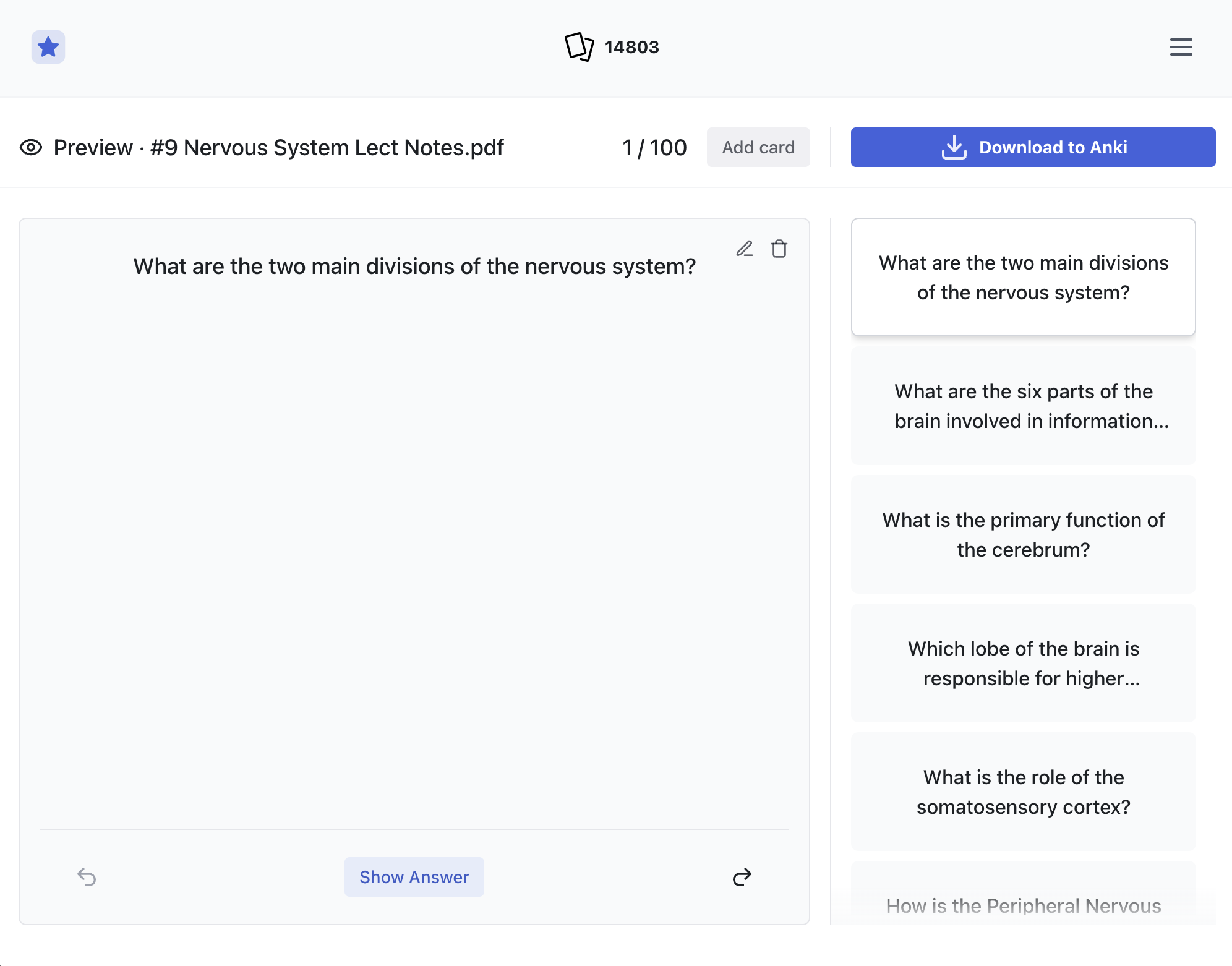
Figure 3. Preview & edit: Review the generated cards and tweak anything you’d like before exporting to Anki..
4) Export and import into Anki
When the deck looks right, export it as an Anki-ready .apkg file and import it into your existing Anki setup. From here, your usual workflow continues — daily reviews, edits, and tagging — just without the time-consuming setup.
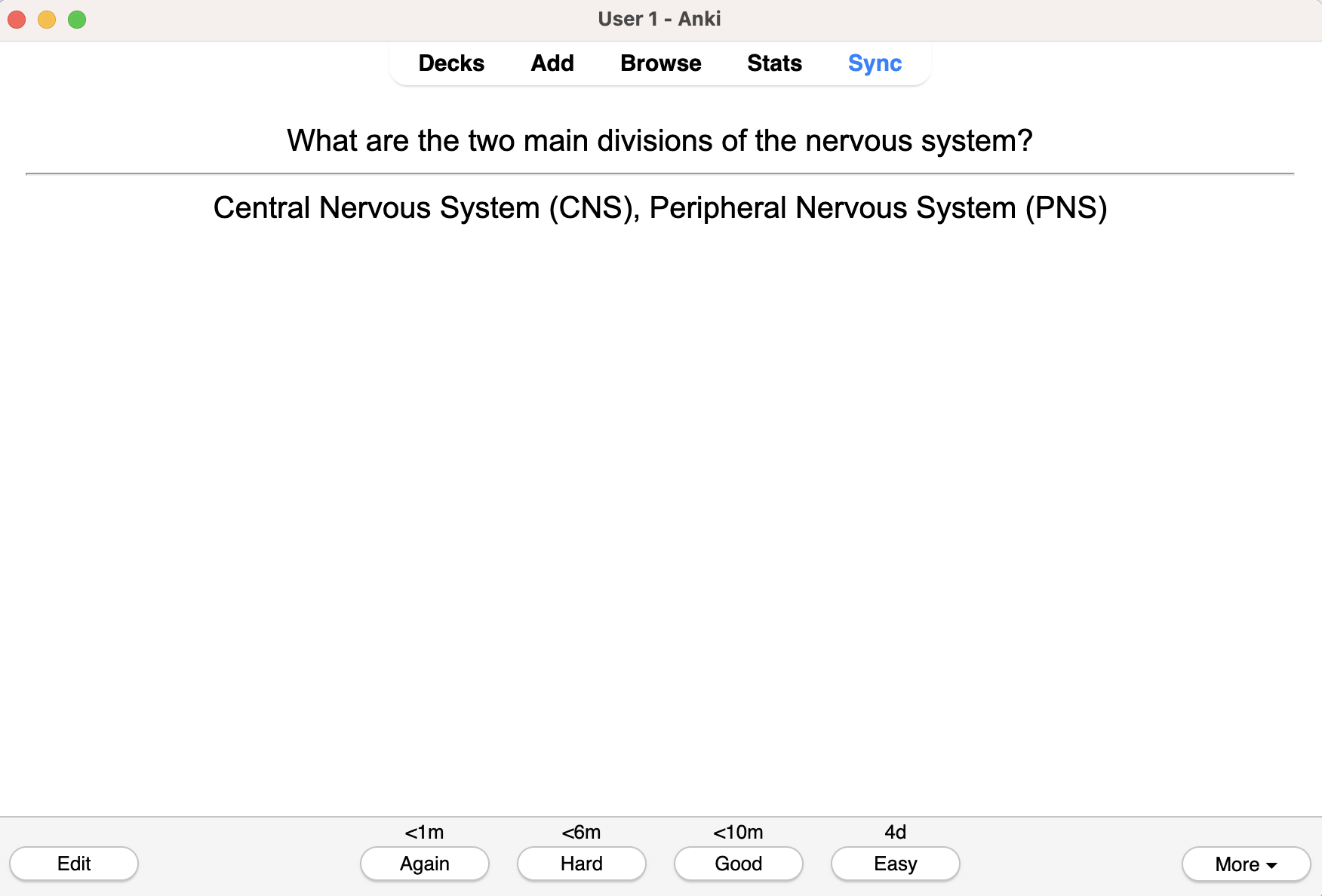
Figure 4. Export to anki: Export your deck to Anki and study right away.
Final takeaway
For medical students, Ankify works best as a simple pipeline you can repeat for every lecture:
Lecture notes in → cards out → export to Anki → study.
If you’re working through anatomy or neuro, like this nervous system lecture, Ankify helps you turn dense notes into a usable Anki deck fast, so you can spend more time doing what matters most: studying.
Get started with Ankify and generate your first 100 cards free at ankify.app.